
Taking courses, assignments and your certificate
How to move through a course, follow your progress, write notes and questions, hand in assignments, join live sessions and get your certificate.
Opening a course
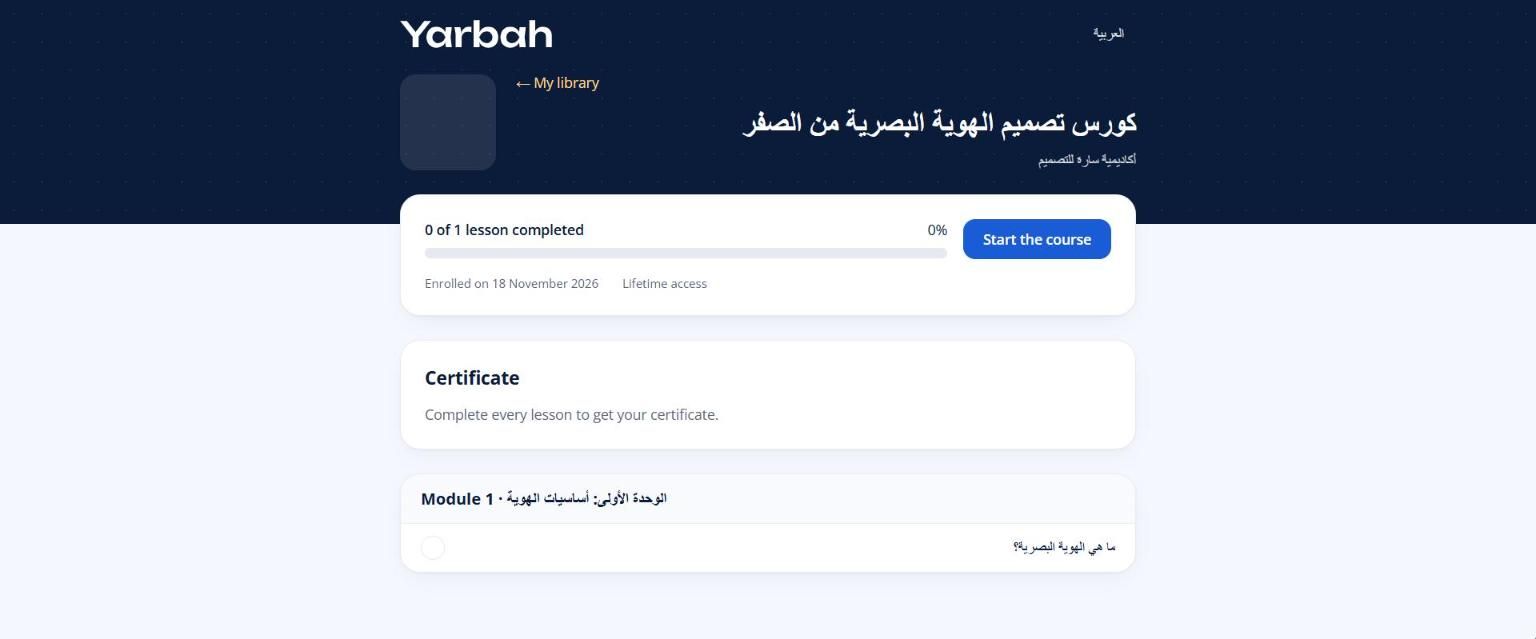
- Enter My library and select Start the course, or Continue learning to go back to your last lesson.
- The course page shows the Course outline: modules and lessons, each lesson's length, and your progress, like "5 of 12 lessons completed".
- It also shows your access: Lifetime access, or access until a date.
Locked lessons
- Opens on a date: the creator releases lessons in stages.
- Finish the previous lesson: the course has Lessons open in order.
- Access ended: your access period is over.
Inside a lesson
- Watch, listen or read. Videos continue from where you stopped.
- Lesson files: select Download.
- My notes: write notes for yourself; they save automatically and only you see them.
- Questions: type in Ask a question about this lesson and select Post. The platform's team replies, marked Team.
- Select Mark as complete when you're done, then Next lesson.
Quizzes and assignments
- Quiz: answer and select Submit answers. Your score, the pass mark and attempts left show. For timed exams: taking an exam.
- Assignment: write your answer, add a Link to your work if you like (such as a file on Google Drive), then Submit. Its state shows as Waiting for review, Approved or Changes requested with Instructor feedback, and you get an email with the result.
Live sessions
At the session time, select Join the session, or watch the stream inside the lesson when Live now shows. Afterwards a Replay appears if there is one.
Leaderboard
If the creator turned it on, you see your rank by quiz points. Only your first name and your last name's initial show.
Certificate
- Complete every lesson.
- Under Certificate, write Your name on the certificate as you want it to appear. It can't be changed later.
- Select Get my certificate, then View your certificate.
The certificate has a public verification link you can add to LinkedIn or send to an employer.
Messages you may see
- You have used all your attempts.
- Complete every lesson first.
- This course doesn't issue certificates.
- Write your answer (links must start with https://).
FAQs about this page
Updated 19 November 2026
Was this article helpful?