
Building a community for your audience
Create a community with spaces, posts, polls, events, points and levels, and sell it alone or inside a membership.
A community is where your audience meets inside your platform: discussion spaces, posts, polls and comments, announcements, an events calendar, and points, levels and a leaderboard. Members enter it from My library.
Who can create one?
The platform owner, admins and anyone with permission to manage products. Communities: Free 0, Pro 1, Business 5.
Steps
- From Products, create a new product, choose Community and write the price (0 for a free community).
- Under Spaces you'll find a General space. Add what you need with Add a space.
- Set Joining and rules.
- Set the levels and what each level unlocks (optional).
- Complete the description and image, then publish. "The community is a draft. Publish it so buyers can reach it." shows until you do.
- Select Open the community and write a first welcome post.
Spaces
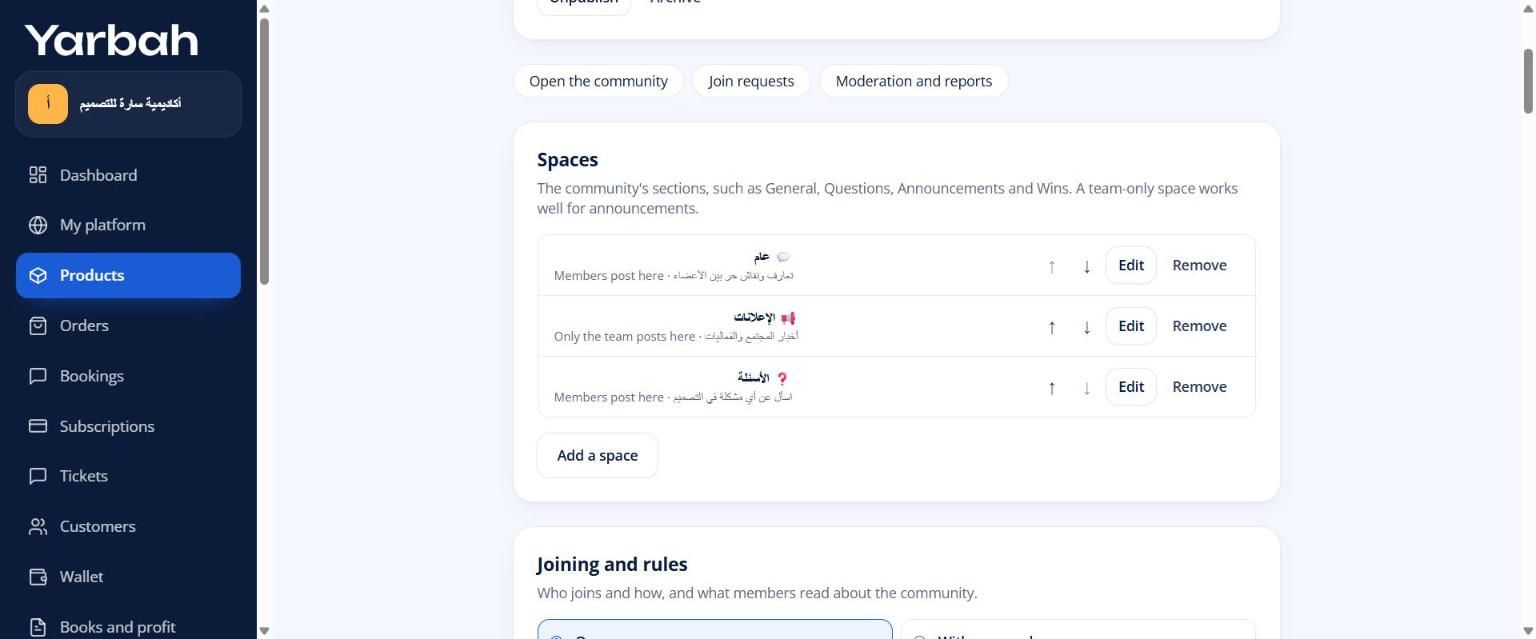
Spaces are the community's sections, such as General, Questions, Announcements and Wins. Each space has:
- An Icon, a Name and a Short description.
- Who posts: Members post here, or Only the team posts here (good for announcements).
Reorder spaces with Up and Down. A community needs at least one space before publishing.
Joining and rules
- Open: everyone who bought or got the community comes straight in.
- With approval: members answer your Join question, and you or the moderators approve or reject them under Join requests. Good for closed communities.
- About the community and Rules: members read them in the About tab. Write the rules clearly; they're your reference when moderating.
- Members can post: turn it off so only the team and moderators post; comments stay open.
Points and levels
- Every like a member gets on a post or comment is a point. Members can't like their own writing.
- Nine levels, each needing more points than the one before.
- Custom level names: like "Beginner" and "Pro" instead of "Level 2".
- What each level unlocks: pick a product or course members get automatically when they reach the level (2 to 9), and keep. Services delivered by your team can't be picked here.
- A Leaderboard for the last 7 days, the last 30 days and all time.
Inside the community
- Post: a title and text, with Add a poll (2 to 10 options).
- Announcement (every member is notified): for the team, with Email it too.
- Pin a post at the top of the space, and Close comments on it.
- Events: select New event, and write the Event name, time, Minutes, Details and a link starting with https. Members select I'm going, see the join link, and get an email reminder before it starts. A YouTube or Vimeo stream link plays inside the page: live streaming.
- Members: a searchable member directory, and who's online now.
Emails members get
Replies to their posts (at most once an hour per post), announcements, event reminders and a weekly digest. Members can turn them off under My settings.
Protection against spam
A member can write up to 20 posts a day and 60 comments an hour. For moderation: running the community and reports.
Ways to sell a community
- A standalone product at one price, or free.
- Inside a monthly or yearly membership, the most common way.
- Inside a bundle.
Messages you may see
- Add at least one space before publishing the community.
- You've reached your plan's community limit.
- You've written a lot in a short time. Try again shortly. (for members)
FAQs about this page
Updated 19 November 2026