
A tour of the dashboard
What the dashboard's home page shows and what every page in the side menu does.
The dashboard at yarbah.com/dashboard is where you run your platform. On a computer the menu sits beside the page; on a phone it sits above it.
What is on the home page?
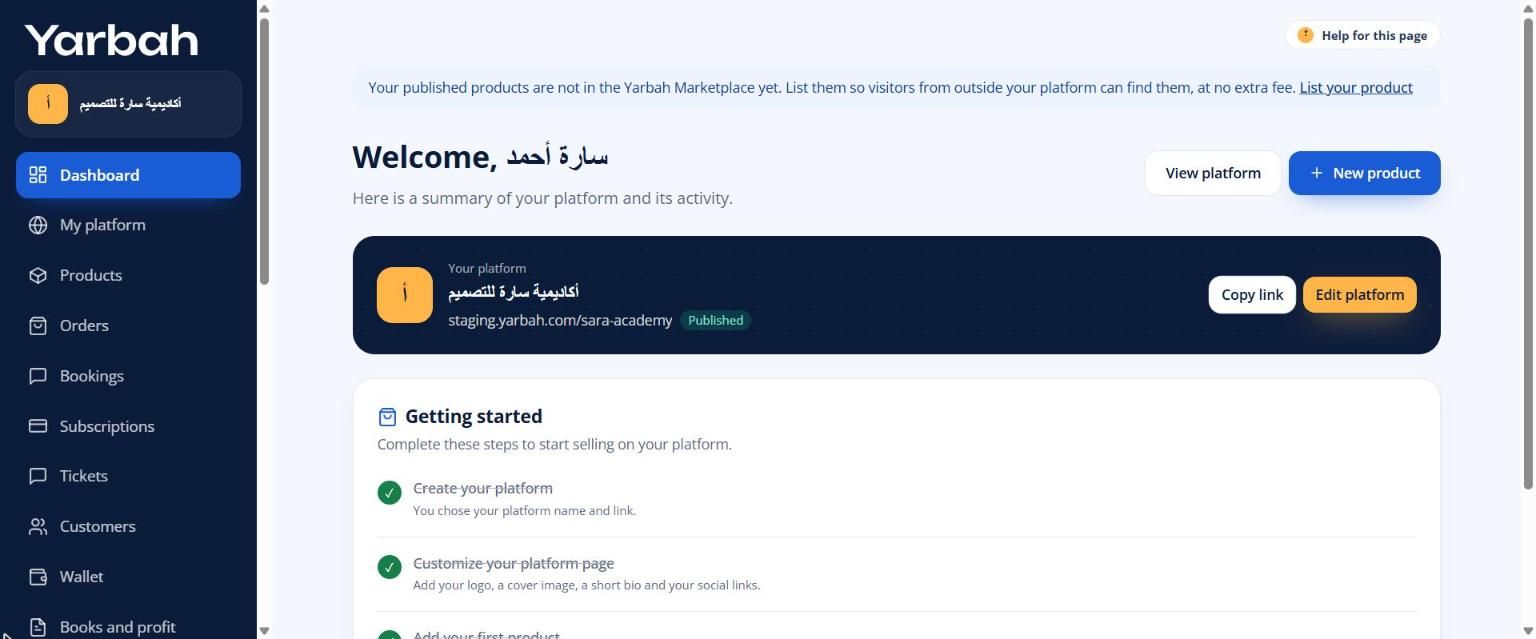
- Welcome, (your name) with View platform and New product.
- Gross sales: everything you have sold.
- Available to withdraw: earnings past their guarantee period, with Request a payout.
- In the guarantee period: earnings waiting for the guarantee period to end, with the Next release date.
- Published products: how many you have now.
- Your platform: the address, its status (Published or Hidden), Copy link and Edit platform.
- Getting started: create your platform, customize its page, add your first product and make your first sale. Each unfinished step has Start.
What does each menu page do?
The pages you see follow your role on the team. The owner sees everything.
Your platform
- My platform: name, logo, cover, bio, social links, link and custom domain, and the way into the design editor. Learn more.
- Products: all your products of every type. Learn more.
- Sales tools: coupons, order bumps, abandoned carts and reviews.
- Affiliates and Marketing (tracking tools).
- Bookings: bookings and availability. Learn more.
Sales and customers
- Orders: every order and refunds.
- Customers: your customer list, each customer's details and the leads from sign-up forms.
- Subscriptions: membership and instalment subscriptions.
- Tickets: messages from buyers to you.
Money
- Wallet: balances, payout requests, statements and identity checks.
- Books and profit: your expenses and net profit (on paid plans).
Settings and tools
- Team: invite members and set their roles.
- Subscription: your Yarbah plan and its invoices.
- App store: add-ons for your plan.
- Live meetings: connect Zoom and Google Meet.
- AI assistant, AI and MCP and Webhooks.
- Yarbah Academy: video lessons on selling and marketing.
- Yarbah support: message the Yarbah team.
How do I switch between my platforms?
If you belong to more than one platform, Choose a platform shows in the menu. Pick the platform you are working on and every page switches to it.
Where do I find help for the page I am on?
At the bottom of every dashboard page there is Help for this page. It opens that page's guide entry in a new window.
What does "Your platform is suspended" mean?
This notice shows when the Yarbah team suspends your platform. Your public pages are hidden, sales and payouts are paused, and all your data stays. Check the email you received with the reason, or write to support@yarbah.com.
FAQs about this page
Updated 19 November 2026