
My library: everything you bought in one place
Sign in with your email and a code, download your files, open your courses and communities, copy your keys and codes, and review what you bought.
Everything you buy from any platform on Yarbah reaches My library: files, courses, memberships, communities, sessions and codes. You don't need a separate account for each platform.
How do I sign in?
- Open
yarbah.com/library, or select the link in your purchase receipt. - Type the Email you bought with, and select Send sign-in code.
- Type the Sign-in code you received, then Open my library.
No code? Check spam, or "Promotions" in Gmail, and wait a minute before asking for a new code.
If you sign in with your password on the Sign in page and have no platform on Yarbah, your library opens straight away. At the top of the library you find My account and Sign out.
What do I find for each product?
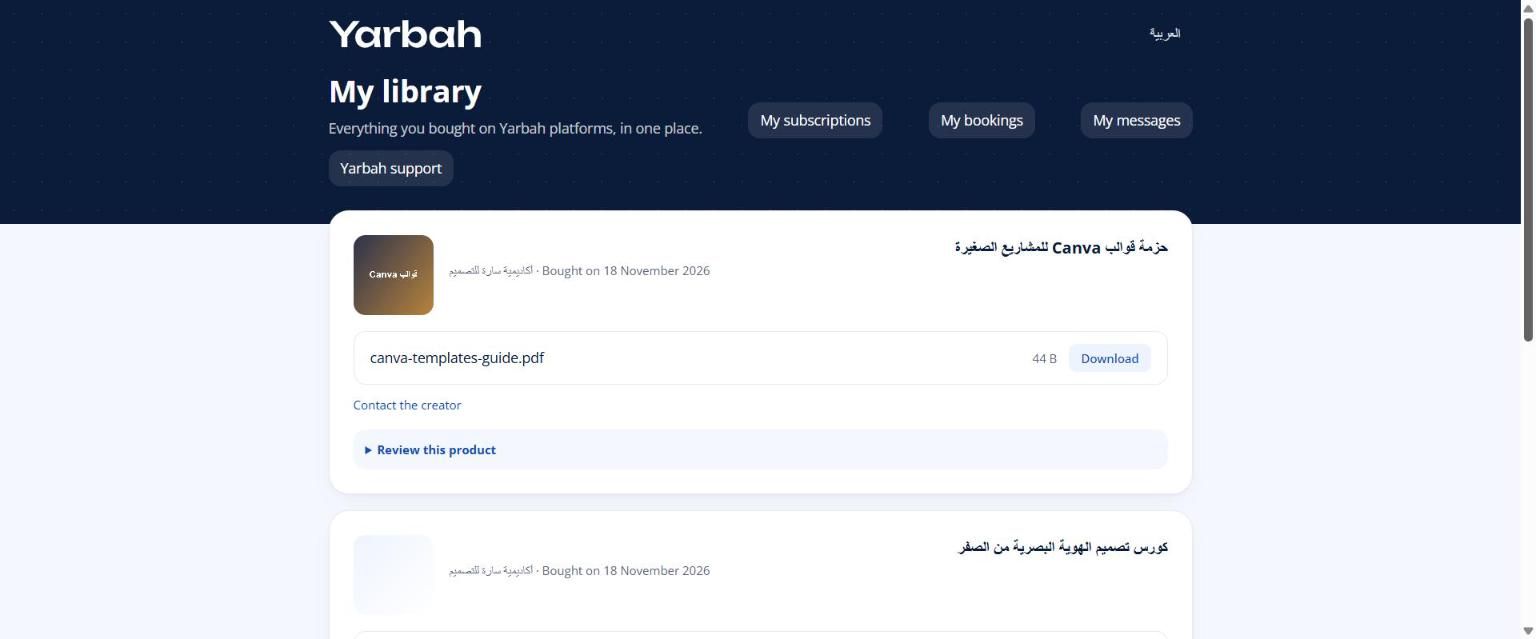
- Files: select Download next to each file. Up to 20 downloads per product in 24 hours. Links are temporary and yours alone, so don't share them. If the creator set a download limit or an access period, "… downloads left" and "Available until" show under the product, with their instructions if any.
- A service done by the creator: your order's status (like "We received your order" or "In progress") and the expected delivery show. Details in "Following a service order" below.
- Course: select Start the course or Continue learning. Taking courses.
- Community: enter from its card. Communities.
- Sessions: from My bookings. Booking sessions.
- Licence key or Your code: copy it from the product card. If "Your code is being prepared" shows, you'll get an email as soon as it's ready.
- Updates from the creator: new versions or files added after you bought.
- Pre-order: "The files open on" a date, and you get an email.
- A gift from ...: if someone gave you the product, their message shows.
Following a service order
Some products are a service the creator does for you, like a design, a review or an account setup.
- Before paying: the product page may ask for some text details. Type them with your email.
- After paying: if "Please complete your details" shows, open Complete your details so work can start, fill in the fields and upload the files asked for, then select Send. You get an email about this too.
- During the work: you get an email when work starts. If the creator needs more information, "More information needed from you" shows with their question; answer from the same form.
- On delivery: "Your order was delivered" shows with their message and a link or files to download, and you get an email.
You can change your details before delivery from Edit your details. Never type passwords or card numbers in these fields.
If the service was a gift to you, you fill in the details from your library.
Reviewing what you bought
Select Review this product, pick the stars, write your thoughts (optional) and a Display name, then Post the review. It shows on the product page with a "Verified buyer" badge, and you can edit it later.
A problem with a product?
Select Contact the creator under the product. Contact and support.
Messages you may see
- The code is wrong or has expired. Request a new one.
- Too many codes requested. Wait a minute and try again.
- You reached today's download limit for this product. Try again in 24 hours.
- This file is not available to your account. (for example after a refund)
- Your access to this file has ended. Contact the seller.
- You've used all available downloads. Contact the seller.
FAQs about this page
- Can I limit the number of downloads or the access period?
- I bought a product and have no platform. Where do I land after signing in?
- My code does not work. What do I do?
- I paid but my code has not appeared. Why?
- I got an email that a platform I bought from moved to Yarbah. What do I do?
- I bought a service. Where do I complete my details?
- How do I follow a service I bought?
Updated 19 November 2026