
Your platform team and their roles
Invite members by email in one of four roles, what each role can do, what stays with the owner, and Yarbah support access to your dashboard.
Add the people who help you: a designer, a support agent or an accountant. Each member has their own sign-in, sees only what their role allows, and never needs your password.
Who can add members?
The platform owner only. Teams are available on: Pro and Business. Members: Pro 3, Business 10.
Roles
| Role | What can they do? |
|---|---|
| Manager | Manages the platform, products and marketing, sees orders, the wallet and customers, fulfills and delivers orders, answers tickets, issues refunds and exports customers. |
| Editor | Edits the platform page, products and their files. |
| Support | Sees orders and customers, fulfills and delivers orders, replies to their tickets, and adds tags and notes. |
| Finance (view only) | Sees orders, the wallet and customers without changing anything, doesn't see buyers' details on service orders, and records in Books. |
How do I invite a member?
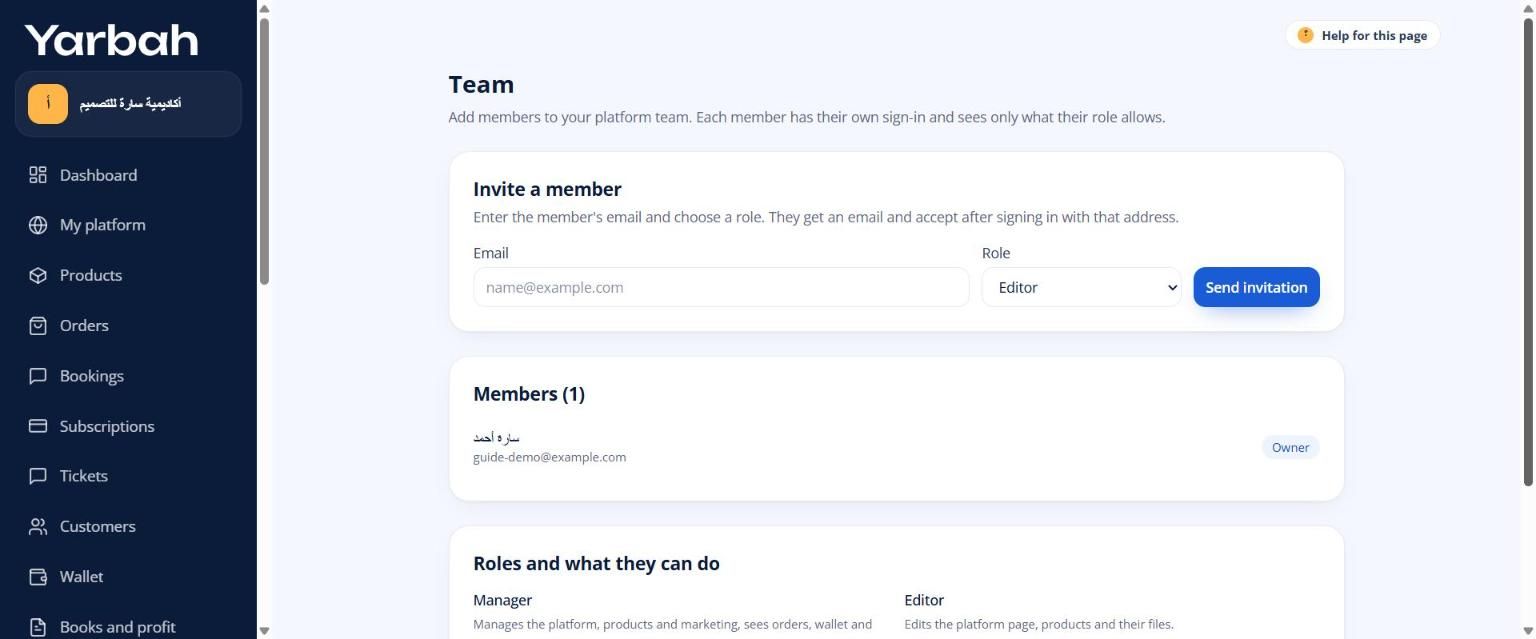
- In the side menu open Team.
- Under Invite a member, write the Email and pick the Role.
- Select Send invitation. They get an email with the invitation, valid for 7 days.
- The invitation shows under Pending invitations. You can Revoke it before it's accepted.
How does the member accept?
- They sign in to Yarbah with the same email you invited, verifying it if needed.
- They open the invitation link, or the Team invitations page, and select Accept.
- Your platform appears in the platform list next to their name in the side menu.
A member of several teams picks the platform from the list, and can create their own platform too.
Removing a member, or leaving
- Remove: next to the member under Members, then Confirm removal. They get an email.
- Leave the team: a member can leave on their own from the Team page, and only comes back with a new invitation.
Nothing the member did is deleted, and every change is in the audit log.
Yarbah support access to your dashboard
If you asked for help, a Yarbah staff member may need to work in your dashboard as you do, for example to fix a product page:
- The session is time-limited and needs two-step verification and a written reason.
- You get an email about it, and the session and every change are logged under the staff member's name.
- They can't withdraw, see payout details, change the subscription or team, refund, or export customers.
Messages you may see
- This person is already on the team.
- This email already has an invitation. Revoke it first to send a new one.
- You reached your plan's team size.
- The owner's role cannot be changed or removed.
- This invitation expired. Ask for a new one. (for the member)
Updated 19 November 2026
Was this article helpful?