
The design editor
Preview, draft, autosave, undo, publishing and earlier versions, and how to edit any section.
The editor (yarbah.com/dashboard/platform/design) designs every page of your platform by drag and drop. Everything you do is saved to a draft that visitors don't see until you select Publish changes.
Who can use it?
The owner, managers and editors, on every plan. Some sections and templates are on paid plans and are marked as such.
What are the editor's parts?
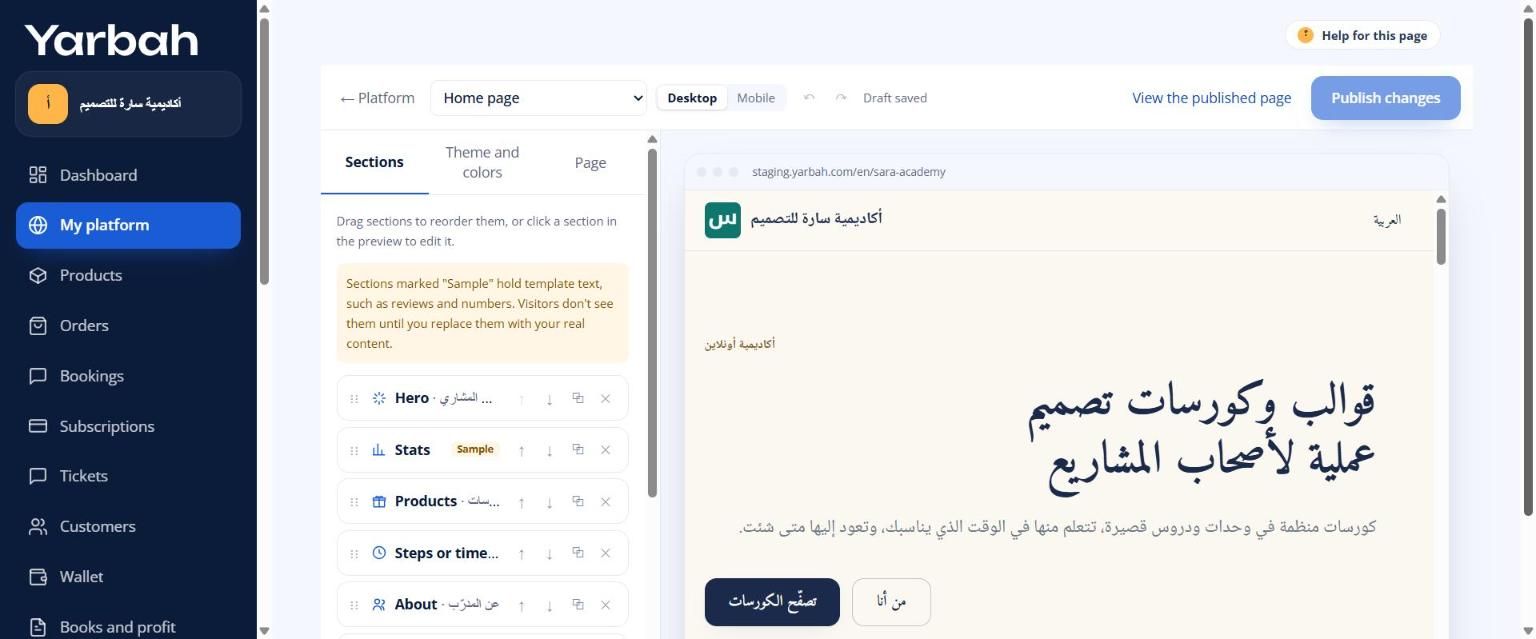
- Page: pick the page you are editing: Home page, Product page (all products), Thank-you page, or one of your landing pages.
- Preview: Desktop or Mobile. Click any section in the preview to edit it.
- Three panels:
- Sections: order, add, duplicate and delete sections. Every section.
- Theme and colors: templates, colours, fonts, shapes, header and footer. How.
- Page: search engine and sharing settings, and landing page settings.
- Top bar: Undo and Redo, the save status, View the published page and Publish changes.
How do I edit a section?
- Click the section in the preview or in the Sections panel.
- On the Content tab, edit the text, images and buttons.
- On the Layout tab, pick the Background, Spacing, Width, Alignment and Visibility (hide on mobile or desktop).
- Under Look, pick another look for the section if it has one, such as grid or list.
How do I reorder sections?
Drag a section by its handle in the Sections panel, or use Move up and Move down. The same menu has Duplicate and Delete.
How do I add a section?
Select Add a section and pick from the groups: Introduction and content, Selling, Trust and persuasion, Marketing and more, and Premium sections. What each section does.
How do I format text?
Long text fields accept simple formatting:
## headingfor a subheading.**bold**and*italic*.[link text](https://…)for a link.- Start a line with
-for a list.
How do I link a button?
Each button has a link type: No link, A section on this page, A product page, Buy a product directly (opens checkout), A landing page, The home page, The blog, A blog post (type its address, like my-first-post), or An outside link starting with https://, mailto: or tel:. You can also tick Open in a new tab.
To link a button to a section, give the section a Section id in the link on its Layout tab, such as offer, then pick it under "A section on this page".
How do I edit the header menu?
At the end of the Style tab is the Menu section. The simple menu links to sections of the home page. Select Use the full menu to add up to 8 links to anywhere: landing pages, products, the blog, posts and outside links. Each link can have a dropdown of up to 8 links. Reorder with the arrows, and select Back to the simple menu whenever you like.
Is my work saved automatically?
Yes. The save status shows at the top: Draft saved, Saving…, Unsaved changes, or Could not save (check your connection; it retries by itself). Undo and Redo work on every step in the session.
How do I publish?
Select Publish changes. "Published. Visitors see the new design now." appears. Every publish saves a new, unchangeable version.
How do I restore an earlier design?
In the Page panel select Show versions. Earlier versions show with their numbers, and the current one is marked live. Select Restore to the draft on the version you want; it becomes the draft. Check it, then publish.
What are the product page and the thank-you page?
- Product page is one design for all your products. Its Buy box section shows the open product automatically. How.
- Thank-you page shows to buyers after they pay: the order confirmation first, then the sections you add, such as an offer for another product.
Messages you may see
- You cannot edit this platform's design: your role does not allow it. Ask the owner.
- This link is not supported. Use a YouTube or Vimeo link: in the video section.
- The link starts with https://, mailto: or tel: check the button's link.
FAQs about this page
Updated 20 November 2026